
ServerFanSpeedControl
Objective: 1U,2U rack server change fan speed
\color{#FF3030}{UseByYourOwnRisk!!!}
Basic Information
Server:Dell PowerEdge R720
iDRAC Version:7
Operation System(To manage Server):CentOS 8 / Windows
1.Enable IPMI Control
iDRAC 7
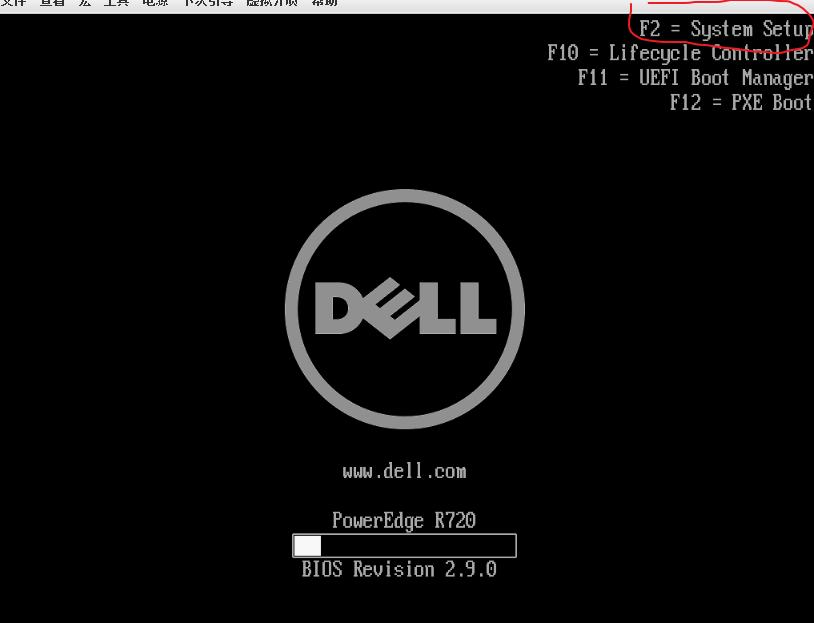
1.Enter System Setup
Use F2 to enter System Setup UI
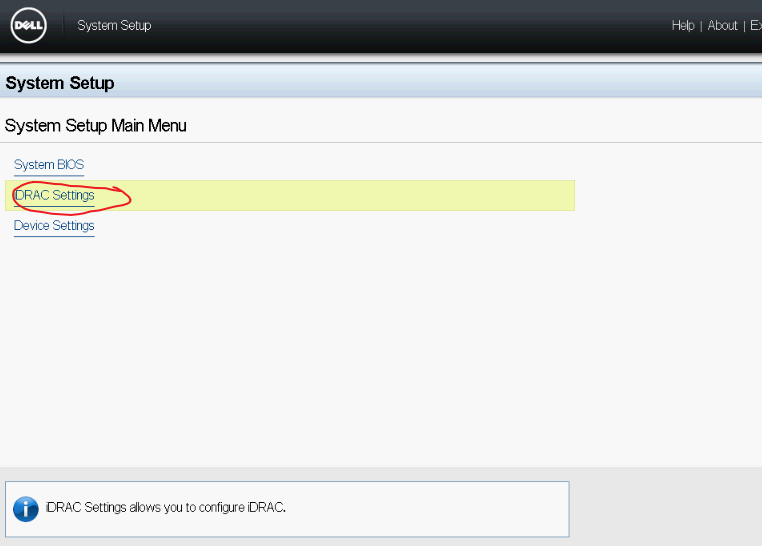
2.Enter iDRAC Settings
3.Set IPMI enabled

Select Network,Set IPMI become enabled

2.Adjust Fan Speed
CentOS 8 User
1.Install IPMI
yum install epel-release -y
yum install ipmitool -y
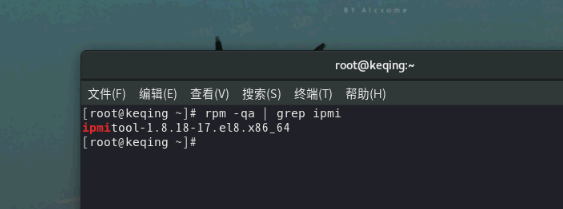
2.Check IPMI is installed
rpm -qa | grep ipmi
3.Change Fan Speed
ipmitool -I lanplus -U ipmiUsername -P ipmiPassword -H ServerAddress raw 0x30 0x30 0x01 0x00
ipmiUsername:Username to login iDRAC,default = root
ipmiPassword:Password to login IDRAC,default = calvin
ServerAddress: IP of IDRAC address,NOT the operation systemIP or other VMs IP
0x00 = DISABLE manual operation
0x01 ENABLE manual operation
3.2 Change Spped
ipmitool -I lanplus -U ipmiUsername -P ipmiPassword -H ServerAddress raw 0x30 0x30 0x02 0xff 0x18
0xff = Apply to ALL fan
0x18 = Percentage of the fan operate,The orginal Fan should be 12000rpm。0x18 is eqaul to 24 in decimal number.
0xff 0x18 = All Fan will operate in 24% of rpm, you can change 0xff to adjust each fan.
10% should be suitable for not high load operation (i.e. NAS or HomeAssistant)
==================================================================
Windows User
You can use software by @cw1997
https://github.com/cw1997/dell_fans_controller/releases/
User:IDRAC LoginName,default = root
Password:IDRAC password,default = calvin
IP: iDRAC server IP,NOT VMs IP