mirror of
https://github.com/netfun2000/ServerFanSpeedControl.git
synced 2026-02-27 09:53:26 +08:00
 ugnjhjf
82 lines
2.7 KiB
Markdown
82 lines
2.7 KiB
Markdown
# ServerFanSpeedControl
|
|
1U,2U机架式服务器风扇调速
|
|
|
|
$\color{#FF3030}{自行承担使用风险!!!}$
|
|
|
|
机型和iDRAC版本
|
|
使用机型:Dell PowerEdge R720
|
|
iDRAC版本:7
|
|
控制主机系统版本:CentOS 8 / Windows
|
|
|
|
一、开启IPMI控制
|
|
==================================================================
|
|
iDRAC 7
|
|
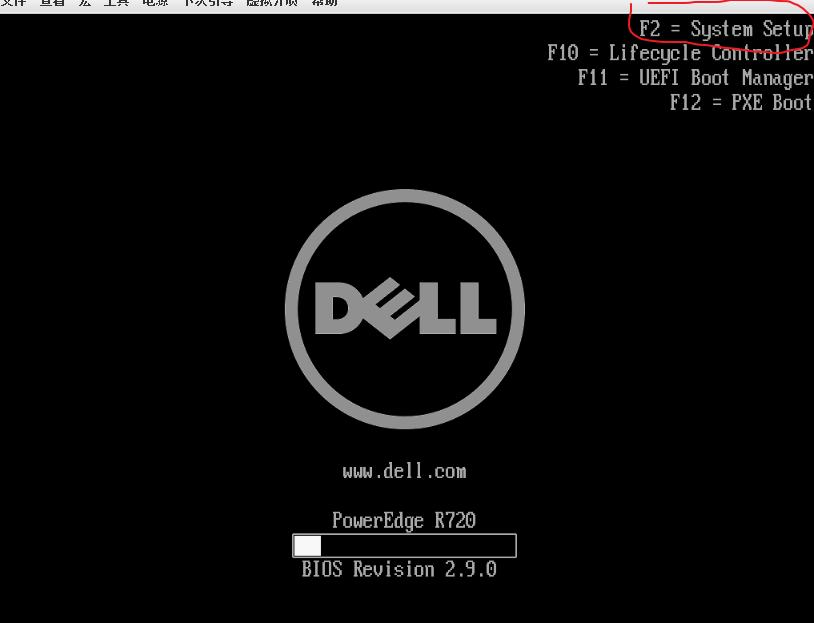
1.进入System Setup界面
|
|
开机的时候猛戳 F2 ,进入System Setup界面
|
|
|
|
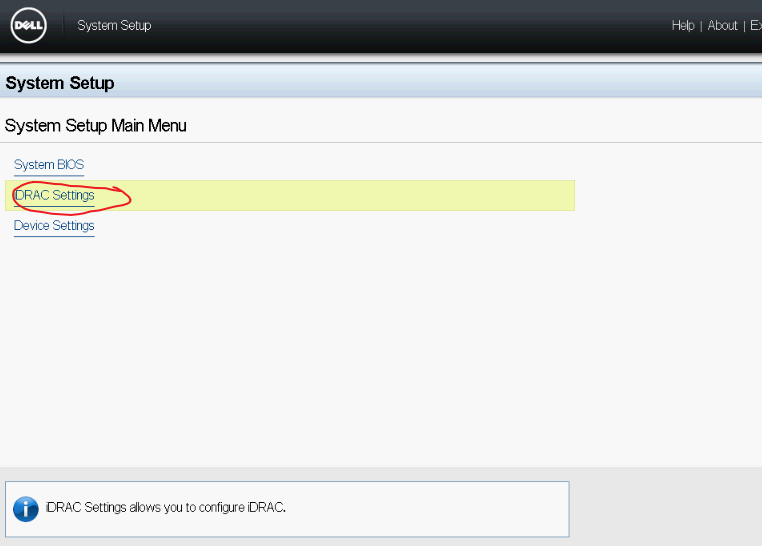
2.进入iDRAC Settings
|
|
|
|
3.设置 IPMI 为 enabled
|
|

|
|
选择Network后往下拉,设置 IPMI 为 enabled
|
|

|
|
|
|
|
|
二、风扇调速
|
|
==================================================================
|
|
CentOS 8 用户
|
|
1.安装IPMI
|
|
|
|
|
|
```
|
|
yum install epel-release -y
|
|
yum install ipmitool -y
|
|
```
|
|
|
|
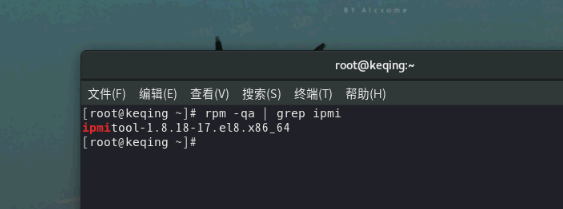
2.查看状态
|
|
查看是否安装完毕:
|
|
```rpm -qa | grep ipmi```
|
|
|
|
|
|
3.进行风扇调速
|
|
3.1 启用手动调速
|
|
```ipmitool -I lanplus -U ipmi用户名 -P ipmi密码 -H 服务器地址 raw 0x30 0x30 0x01 0x00>```
|
|
ipmi用户名:登录iDRAC的用户名,默认为 root
|
|
ipmi密码:登录iDRAC的密码,默认为 calvin
|
|
服务器地址: iDRAC的服务器IP,不是系统或虚拟机的IP
|
|
0x00 代表 禁用 手动调速 ; 0x01 代表 启用 手动调速
|
|
|
|
3.2 调整风速
|
|
```
|
|
ipmitool -I lanplus -U ipmi用户名 -P ipmi密码 -H 服务器地址 raw 0x30 0x30 0x02 0xff 0x18
|
|
```
|
|
|
|
0xff 等于所有风扇
|
|
0x18 风扇运行的转速百分比,原厂的暴力扇应该为12000rpm。这是 24 的16进制
|
|
|
|
0xff 0x18 = 所有风扇 以 24% 的转速运行,可以更改 0xff 为单独的风扇调速
|
|
|
|
至此,应该能够调整转速了,我自己用的是10%的转速,作为NAS使用。
|
|
|
|
切勿让转速过低或过高
|
|
==================================================================
|
|
Windows用户
|
|
可以利用 @cw1997 大佬开发的软件:
|
|
|
|
https://github.com/cw1997/dell_fans_controller/releases/
|
|
|
|
|
|
User:登录iDRAC的用户名,默认为 root
|
|
Password:登录iDRAC的密码,默认为 calvin
|
|
IP: iDRAC的服务器IP,不是系统或虚拟机的IP
|
|
Refresh Now: 获取目前所有风扇的转速和CPU温度等信息。
|
|
|
|
|
|
|
|
总结
|
|
==================================================================
|
|
按上面的操作应该能给风扇调速了,第一次码字,希望能帮到大家。
|
|
不妨点个星或者关注吧
|
|
|
|
|